Emailing PDFs
Share your mail documents via email as a link or attachment
Overview
Mail Sorter lets you email any PDF document directly from your mailbox to one or more recipients. You can choose to send the PDF as a secure link or as a file attachment, depending on your needs.
How to Email a PDF
- Find the mail item you want to share in your mailbox
- Click the send icon (arrow) on the left side of the mail item row
- The Email PDF Document modal will open
- Add one or more recipient email addresses (press Enter or Space to confirm each address)
- Choose your delivery method using the Send PDF as toggle (Link or Attachment)
- Review and customize the subject line and message body if needed
- Click Send Email
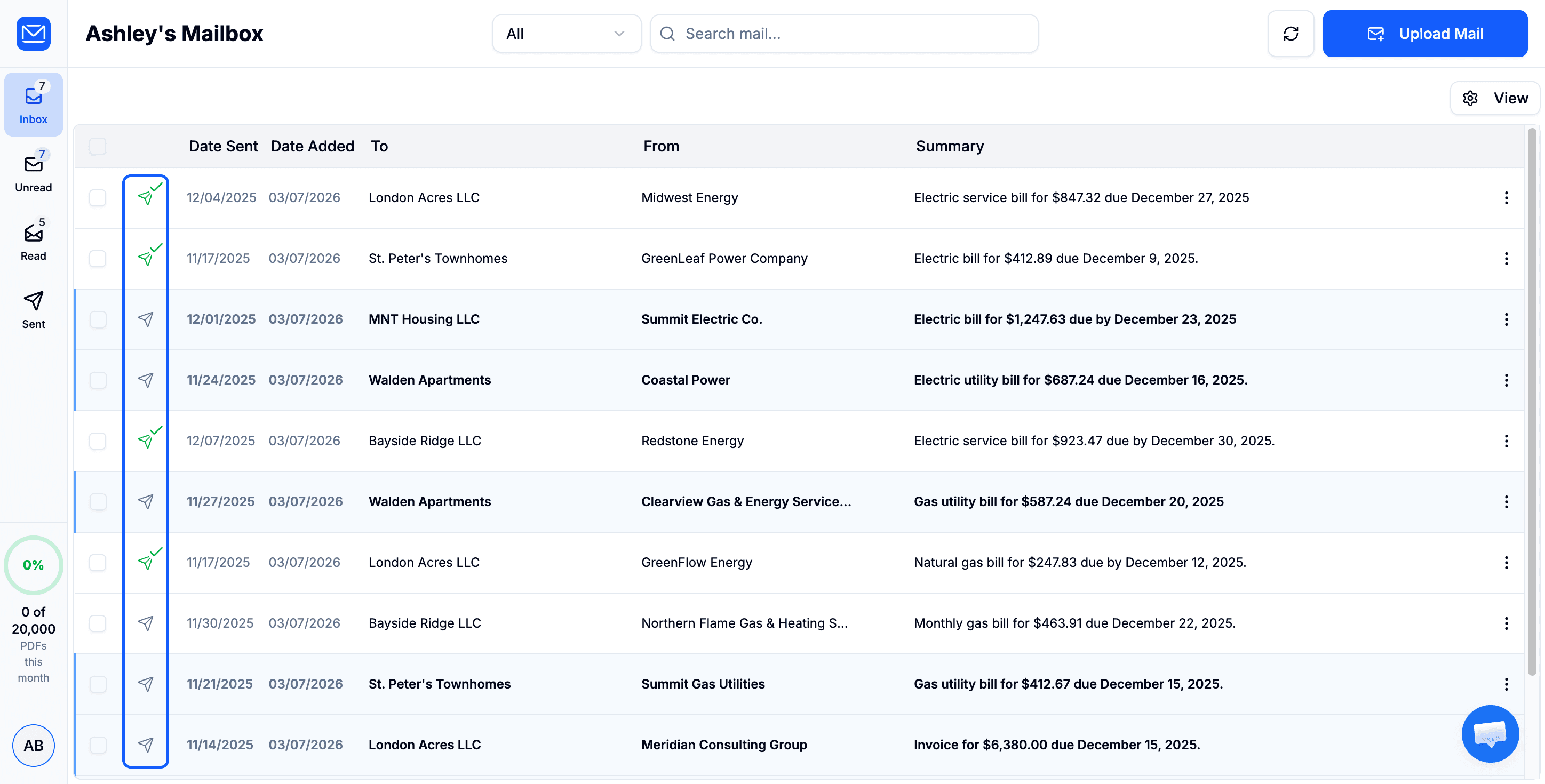
Click the send icon (arrow) on any mail item to open the email modal
As you type a recipient address, Mail Sorter will suggest contacts you have emailed before. Click a suggestion to add it quickly.
Delivery Methods: Link vs. Attachment
Before sending, use the Send PDF as toggle to choose how the recipient receives the document. Each method has its own advantages.
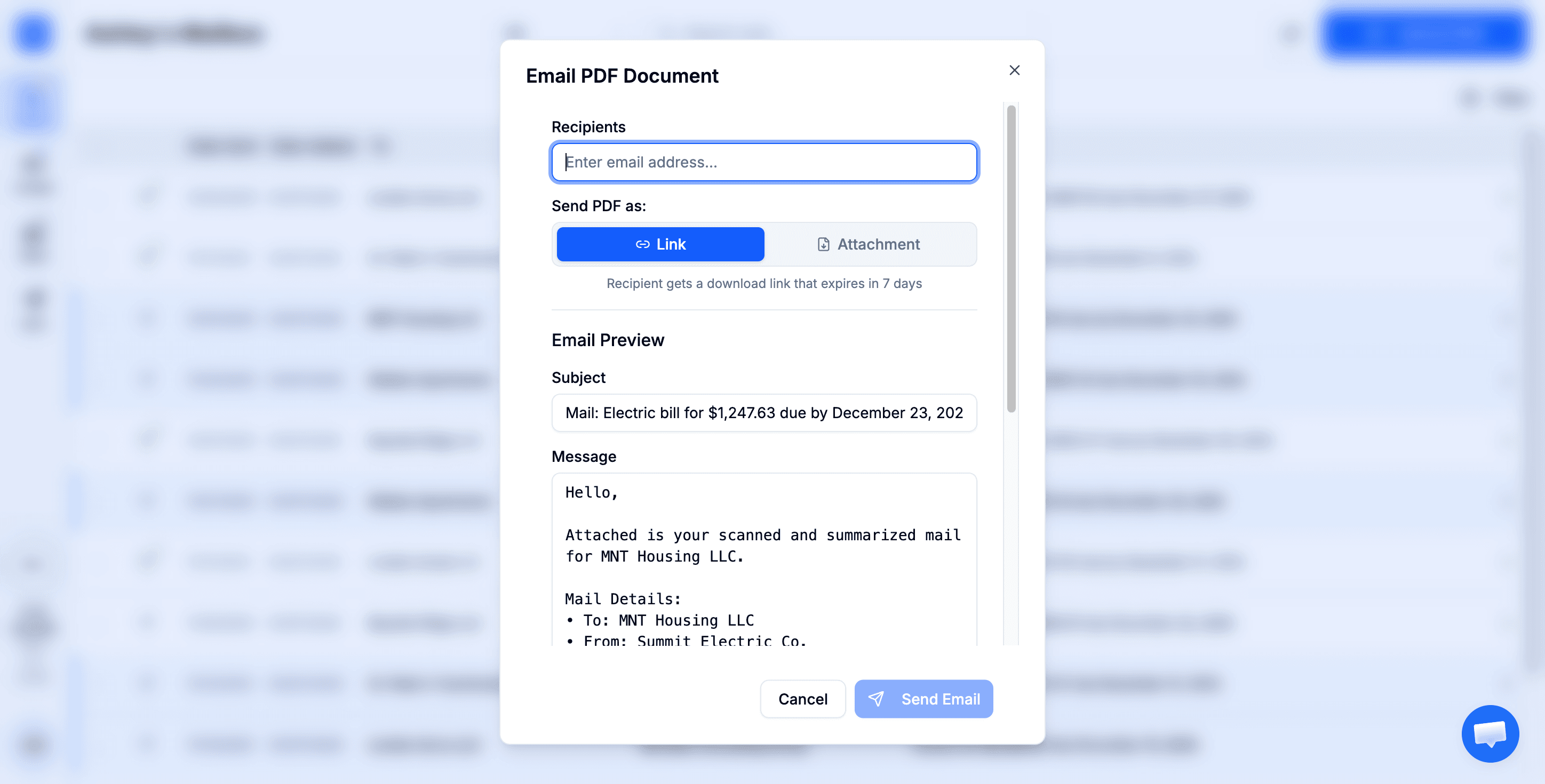
Link mode (default)
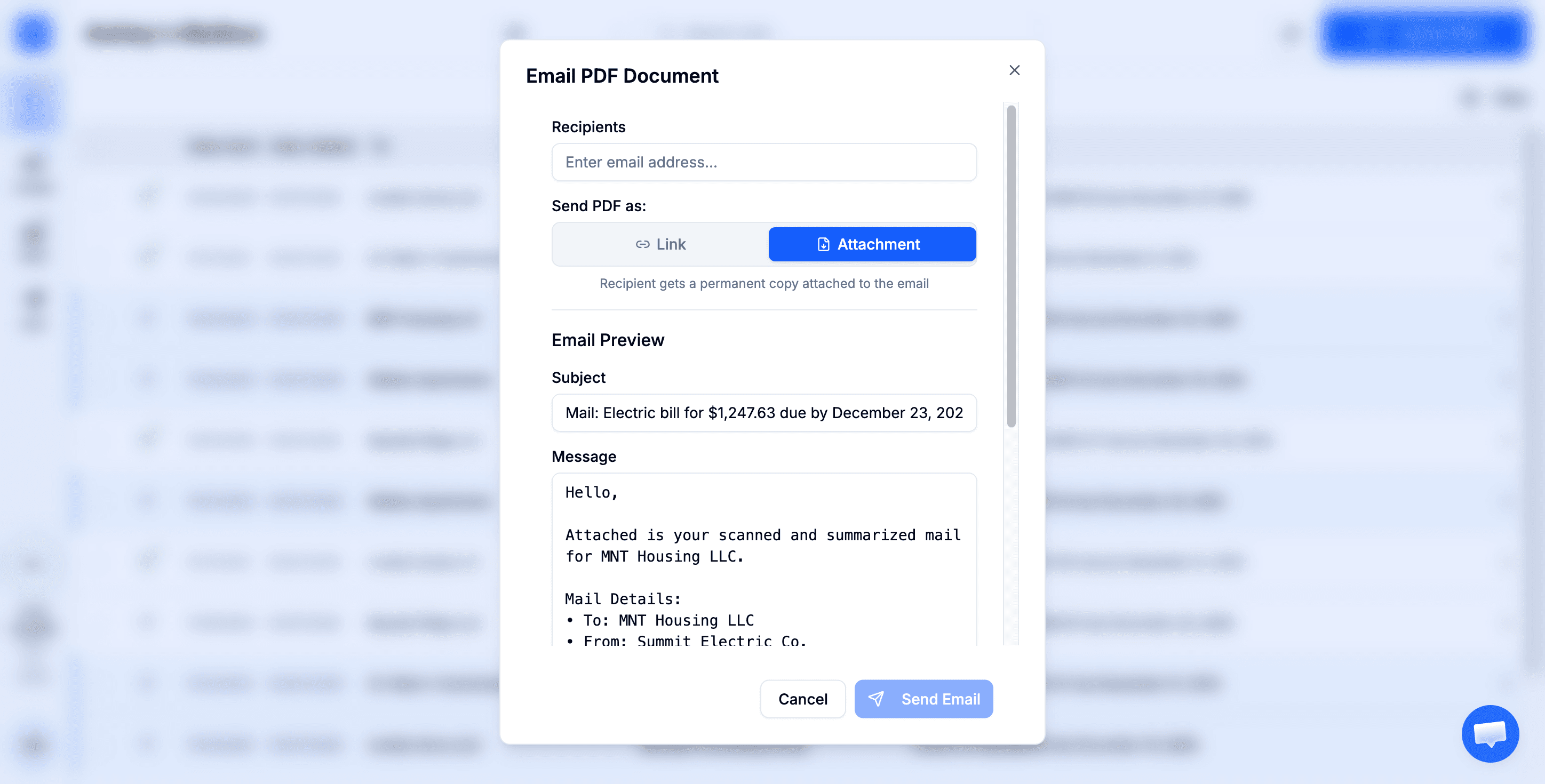
Attachment mode
Link (Default)
The recipient receives an email with a secure download link to the PDF. The link expires after 7 days.
- Smaller email size - The email itself is lightweight since the PDF is not embedded
- Faster delivery - Emails with links arrive quicker than large attachments
- More secure - The link automatically expires after 7 days, limiting access
- Avoids spam filters - Some email providers flag large attachments; links avoid this
The download link expires after 7 days. If the recipient needs access after that, you will need to send the email again.
Attachment
The actual PDF file is attached directly to the email. The recipient can download and save it permanently.
- Permanent copy - The recipient keeps the file forever in their email
- Works offline - Once downloaded, no internet connection is needed to view it
- No expiration - Unlike links, the attachment never expires
- Familiar format - Most people expect and understand email attachments
Large attachments may be flagged by spam filters or rejected by some corporate mail servers, which often block attachments over 10-25MB. If your PDF is close to the 10MB upload limit, consider using Link mode instead for more reliable delivery.
Attachment mode works best for documents the recipient needs to keep long-term, like tax forms, contracts, or important correspondence.
Which Method Should I Use?
- Use Link when sharing sensitive documents where you want access to expire, or when the recipient just needs a quick look
- Use Attachment when the recipient needs a permanent copy, such as tax documents, legal papers, or records they need to save
- Use Link if you are unsure - it is the safer default since access can naturally expire
Once a PDF is sent as an attachment, it cannot be revoked. The recipient will have a permanent copy in their email. If you are sharing sensitive documents and want the ability to control access, use Link mode so the download link expires automatically after 7 days.
Email History
Mail Sorter keeps track of every email you send:
- The send icon shows a green checkmark and a count badge after you have emailed a document
- You can view the full email history for any document from the PDF viewer
- Recipient email addresses are saved as contacts for quick access in future emails
Tips
- You can send the same document to multiple recipients at once - just add more email addresses before clicking Send
- The subject line and message body are pre-filled with the document details but can be fully customized
- Switching between Link and Attachment mode will automatically update the message body to match